
Proxy server ff guide for Android covering Free Fire proxy setup, settings, connection fixes, compatibility, and safety tips for gamers.
Free Fire Proxy Server for Android – Setup, Settings and Connection Guide
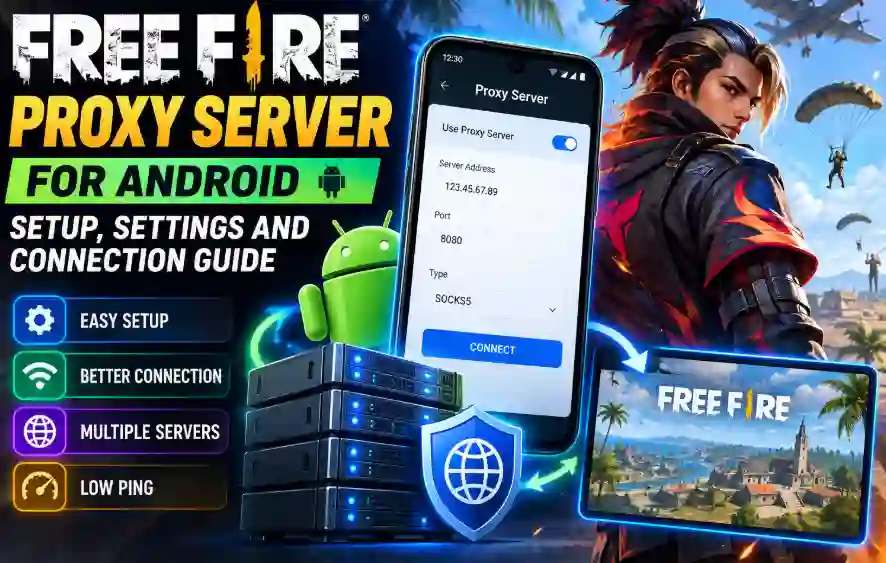
A proxy server FF setup can help Android users understand alternative network routing options when playing Free Fire. Players often search for a Free Fire proxy to troubleshoot connection problems, explore server configurations, or learn why their game experiences high ping. However, a proxy does not automatically improve gaming performance. Its results depend on the server, network conditions, and compatibility with the game.
This guide explains how a proxy server works, how to check Android compatibility, how to configure a supported proxy, and how to troubleshoot common connection issues. You will also learn about Wi-Fi and mobile data settings, privacy considerations, and the steps to take before installing a third-party proxy application.
What Is a Proxy Server FF?
A proxy server FF refers to a proxy service or configuration that a player wants to use with Free Fire. A proxy acts as an intermediary for supported network traffic between a device and an internet destination.
Depending on its configuration, a proxy may change the public IP address visible to a destination or provide an alternative route for network traffic. However, not every proxy supports gaming traffic, and a proxy configured for a browser may not work with Free Fire.
Before using any proxy service, check its supported protocols, device requirements, privacy policy, and compatibility information.
Why Do Players Use a Free Fire Proxy?
Android users search for a Free Fire proxy for several reasons:
- To understand alternative network routing options.
- To investigate high ping or unstable connections.
- To learn about proxy settings and server locations.
- To compare proxy services with VPN applications.
- To understand IP address masking and privacy.
- To troubleshoot connection issues after app or game updates.
A proxy is only one possible networking option. Sometimes, a weak Wi-Fi signal, mobile network congestion, or an unstable internet connection causes problems that a proxy cannot solve.
How Does a Proxy Server Work on Android?
A proxy receives supported traffic from your device and forwards it to the intended destination. The destination then sends a response through the established connection.
The exact process depends on the proxy type and the application using it. Some Android apps handle proxy settings internally, while other configurations use a system-level VPN service to route selected traffic.
Android’s standard Wi-Fi proxy setting does not automatically route every application’s traffic. Therefore, entering a proxy address does not guarantee that Free Fire will use that proxy.
Free Fire Proxy Server Android Compatibility
Before configuring a proxy, check whether your Android device and the selected application support the required settings.
Check Your Android Version
Review your device’s Android version and compare it with the application’s documented requirements. Some networking applications support only certain Android versions or require specific permissions.
Avoid installing an APK if the developer does not explain its compatibility requirements.
Check Proxy Compatibility
Confirm whether the service supports the type of traffic used by your intended application. A browser-only proxy may not support Free Fire.
Check the provider’s instructions for the supported protocol, server address, port, authentication requirements, and device configuration.
Check Your Internet Connection
Test Free Fire using your normal internet connection before changing any settings. Confirm that other apps can access the internet and that your Wi-Fi or mobile data connection is stable.
This gives you a useful baseline for comparison.
How to Set Up a Proxy Server on Android
The setup process depends on whether you use an app-specific proxy or Android’s built-in network settings. Follow only the configuration method supported by your provider.
Step 1: Review the Proxy Provider
Choose a provider that explains its service, supported protocols, server locations, and privacy practices. Avoid unknown applications that promise guaranteed low ping, free diamonds, or complete account protection.
Step 2: Get the Required Proxy Details
If your provider supports manual configuration, obtain the correct server address, port, and authentication details where applicable. Do not use random proxy addresses from unverified websites.
Step 3: Open Android Wi-Fi Settings
For a supported Wi-Fi proxy configuration:
- Open your phone’s Settings.
- Select Wi-Fi or Network and Internet.
- Select the connected Wi-Fi network.
- Open its network settings or edit options.
- Look for the Proxy setting, if available.
- Enter the provider’s verified details.
- Save the settings and test the connection.
Menu names vary by Android version and phone manufacturer. These settings generally apply to supported traffic on that Wi-Fi connection; they do not guarantee that Free Fire will route through the proxy.
Step 4: Configure a Supported Proxy Application
If your provider requires a dedicated app, follow its documented setup instructions. Review the app’s permissions and any Android connection request before approving it.
A VPN permission prompt does not, by itself, prove that an app is trustworthy. Install only software from a source you can verify.
Step 5: Test the Connection
Open a network diagnostic tool or test a supported destination to confirm that the configuration works. Then check whether the intended application can connect.
If Free Fire cannot connect, disconnect the proxy and test the normal connection again. This helps identify whether the proxy configuration is causing the problem.
Free Fire Proxy Settings: What Should You Check?
Correct settings are important for a stable connection. The exact values depend on the provider, so there is no universal proxy address or port that works for everyone.
Server Address and Port
Use only the server address and port provided by a verified service. Incorrect values can prevent the connection from working.
Authentication
Some proxies require a username and password. Enter credentials only into a trusted configuration interface and never share your Free Fire account password with a proxy provider.
Proxy Protocol
Different services support different protocols, including HTTP, HTTPS, and SOCKS5. Make sure your device or proxy app supports the protocol required by the provider.
DNS Settings
DNS translates domain names into IP addresses. Changing DNS may help resolve certain name-resolution problems, but it does not automatically reduce game latency.
If you modify DNS settings while troubleshooting, record the original values so you can restore them if needed.
Connection Permissions
Review the permissions requested by any proxy app. Be cautious if a simple networking tool requests access to unrelated personal information or asks you to install an unknown certificate.
Wi-Fi vs Mobile Data for Free Fire
Your connection quality can vary between Wi-Fi and mobile data.
Using Wi-Fi
A stable Wi-Fi connection can provide consistent performance when the router has a strong signal and the network is not congested. Move closer to the router and reduce interference if the signal is weak.
Using Mobile Data
Mobile data performance depends on signal strength, network congestion, coverage, and your carrier’s routing. If your game experiences lag, test the connection in an area with better reception.
Which Connection Is Better?
Neither Wi-Fi nor mobile data is always faster. Compare both under similar conditions and choose the connection that delivers more consistent results.
Can a Proxy Server FF Reduce Ping?
A proxy may change the route taken by supported traffic, but it cannot guarantee lower ping.
Ping measures the time required for data to travel to a destination and back. A proxy adds another point in the route, which may help or hurt performance depending on network conditions.
Factors That Affect Ping
- Distance between your device and the game server.
- Network congestion.
- Wi-Fi signal quality.
- Mobile data coverage.
- Proxy server load.
- Routing efficiency and packet loss.
How to Test Proxy Performance
First, test your normal connection. Then configure the proxy and repeat the test under similar conditions.
Compare latency, connection stability, and disconnections. Repeat the tests because network conditions can change during the day.
If the proxy consistently makes the connection slower or less reliable, disconnect it and return to your normal network.
Common Free Fire Proxy Connection Problems
Proxy Server Is Not Connecting
Check the server address, port, authentication details, and internet connection. Confirm that the service is online and that your configuration matches the provider’s instructions.
Free Fire Still Has High Ping
A proxy cannot solve every network problem. Check your Wi-Fi signal, mobile data coverage, background downloads, and network congestion.
If the proxy adds latency, use your normal connection instead.
Free Fire Cannot Connect After Changing Settings
The proxy may not support the game’s traffic, or the configuration may be incorrect. Restore the original network settings and test Free Fire without the proxy.
Proxy Works in a Browser but Not in Free Fire
A browser may use a separate proxy configuration. Android’s Wi-Fi proxy setting does not necessarily route traffic from every app.
Check whether the provider supports the game traffic and whether your chosen configuration applies to the intended application.
Proxy Stops Working After an Update
An app or game update can affect compatibility. Review the provider’s current documentation and verify that the configuration still supports your installed versions.
Do not download an unknown replacement APK simply because an older one stopped working.
Is a Free Fire Proxy Safe on Android?
Safety depends on the provider, app permissions, data handling, and configuration.
Before using a proxy:
- Verify the developer and download source.
- Review the privacy policy and logging practices.
- Check requested permissions.
- Avoid entering game account credentials into third-party proxy apps.
- Keep Android security protections enabled.
- Uninstall applications that behave suspiciously.
A proxy may mask your public IP address for supported traffic, but it does not guarantee complete anonymity or protect every type of data. Third-party networking tools can also create compatibility problems, so review applicable game rules before using them.
Proxy Server vs VPN on Android
A proxy routes supported traffic through an intermediary server. A VPN typically creates an encrypted tunnel between your device and a VPN service, depending on its configuration.
A browser proxy may affect only browser traffic, while a VPN can often route traffic from multiple applications. However, neither option guarantees lower ping.
Choose based on your actual networking needs, compatibility, privacy requirements, and measured performance.
Advantages and Limitations of a Free Fire Proxy
Potential Advantages
- Offers an alternative route for supported traffic.
- Can provide IP address masking.
- May offer different server locations.
- Can help users investigate certain routing issues.
Limitations
- May increase latency.
- May not support Free Fire traffic.
- Can introduce connection failures.
- May expose data to an untrustworthy provider.
- Cannot guarantee better gameplay or account safety.
Frequently Asked Questions
What Is a Proxy Server FF?
A proxy server FF is a proxy service or configuration intended for use with Free Fire-related network traffic. Compatibility depends on the service, protocol, and device settings.
How Do I Set Up a Free Fire Proxy on Android?
Check the provider’s instructions, obtain verified configuration details, and use a supported Android setting or application. Test the connection and restore your original settings if the game stops connecting.
Can a Proxy Server Reduce Free Fire Ping?
It may improve routing in some situations, but it can also increase latency. Test your connection before and after using the proxy.
Does Android Wi-Fi Proxy Work With Free Fire?
Not necessarily. Android’s Wi-Fi proxy setting does not automatically route every application’s traffic. The result depends on the game’s networking behavior and the proxy configuration.
Is a Free Fire Proxy APK Safe?
It depends on the source, developer, permissions, and privacy practices. Avoid unverified APKs and applications that request unnecessary information.
Can I Use a Proxy With Free Fire MAX?
Compatibility depends on the proxy service, device, and game version. Verify support before configuring the connection.
Do I Need Root Access to Use a Proxy?
Many standard proxy configurations do not require root access. Requirements vary by application and the type of traffic being routed.
Conclusion
A Free Fire Proxy Server for Android can help users explore alternative network routing, but its usefulness depends on compatibility, configuration, and network conditions. Correct settings alone cannot guarantee lower ping or uninterrupted gameplay.
Before configuring a proxy, verify the provider, check the supported protocol, review app permissions, and test your normal internet connection. If the proxy causes connection errors or increases latency, restore your original settings.
For more information, visit freefireproxyservers.com.in for proxy guides, compatibility information, connection troubleshooting, and Android networking tips.